SSH Key
When you run PMM Server as a virtual machine (AMI or OVF), you can upload your public SSH key to enable SSH access for direct management and troubleshooting.
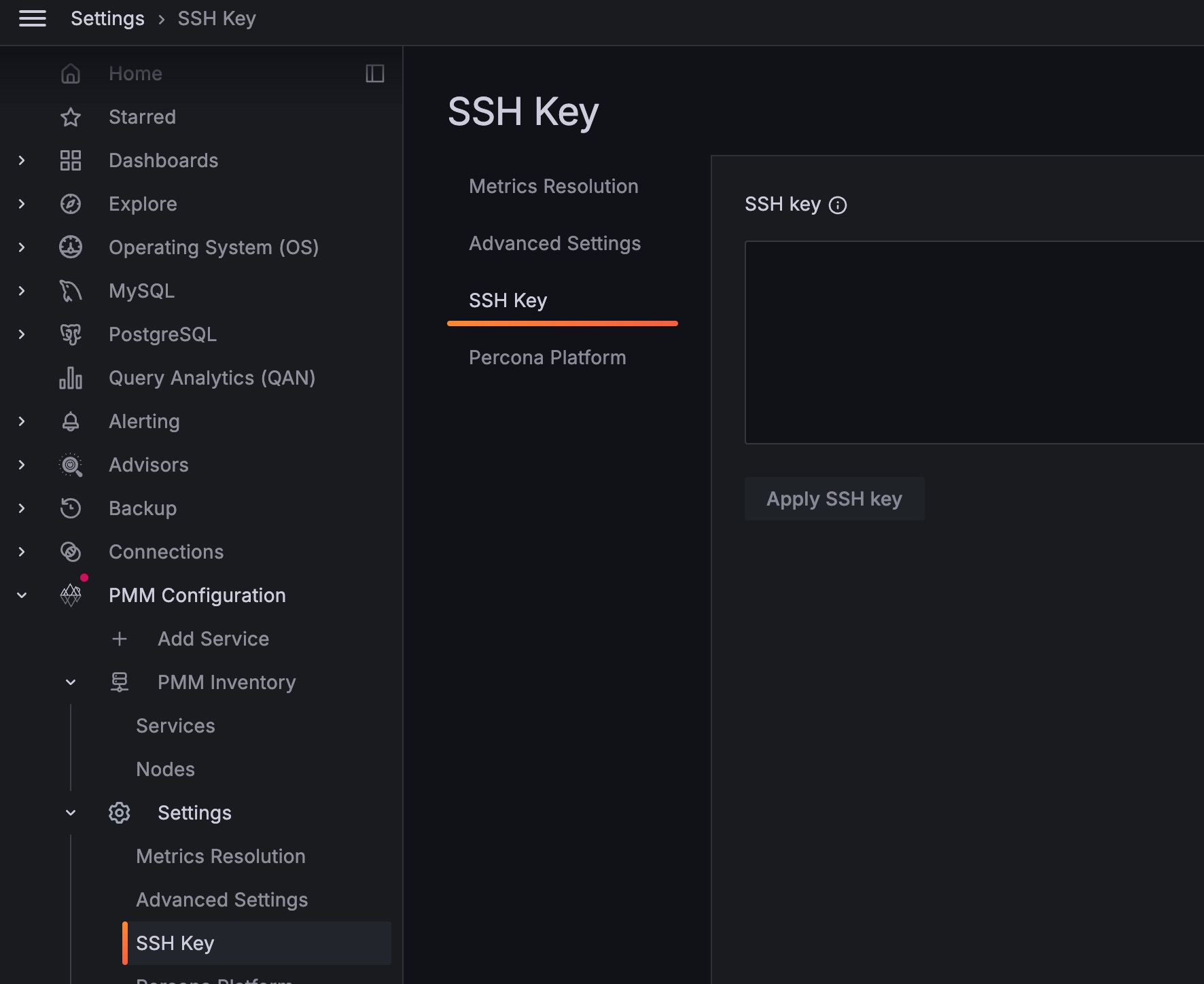
Configure SSH access
To configure SSH access:
- Go to Configuration > Settings > SSH key.
- Enter your public key in the SSH Key field.
- Click Apply changes.
For more information on virtual machine deployments, see Virtual appliance.
Connect via SSH
Once your public key is configured, connect using the admin user:
ssh -i your-private-key admin@<pmm-server-ip>
ssh -i ~/keys/my-aws-key.pem [email protected]
ssh -i ~/.ssh/pmm_key [email protected]
If your private key is in the default location (~/.ssh/id_rsa or ~/.ssh/id_ed25519), you can omit the -i flag:
ssh admin@<pmm-server-ip>