PMM HA Health Overview
Use the PMM HA Health Overview dashboard to spot failed or degraded components in your PMM HA Cluster and find the pods that need attention. It covers PMM Server, PostgreSQL, ClickHouse, VictoriaMetrics, and HAProxy, and shows which nodes currently hold the leader and primary roles.
To open the dashboard, go to PMM HA > Overview.
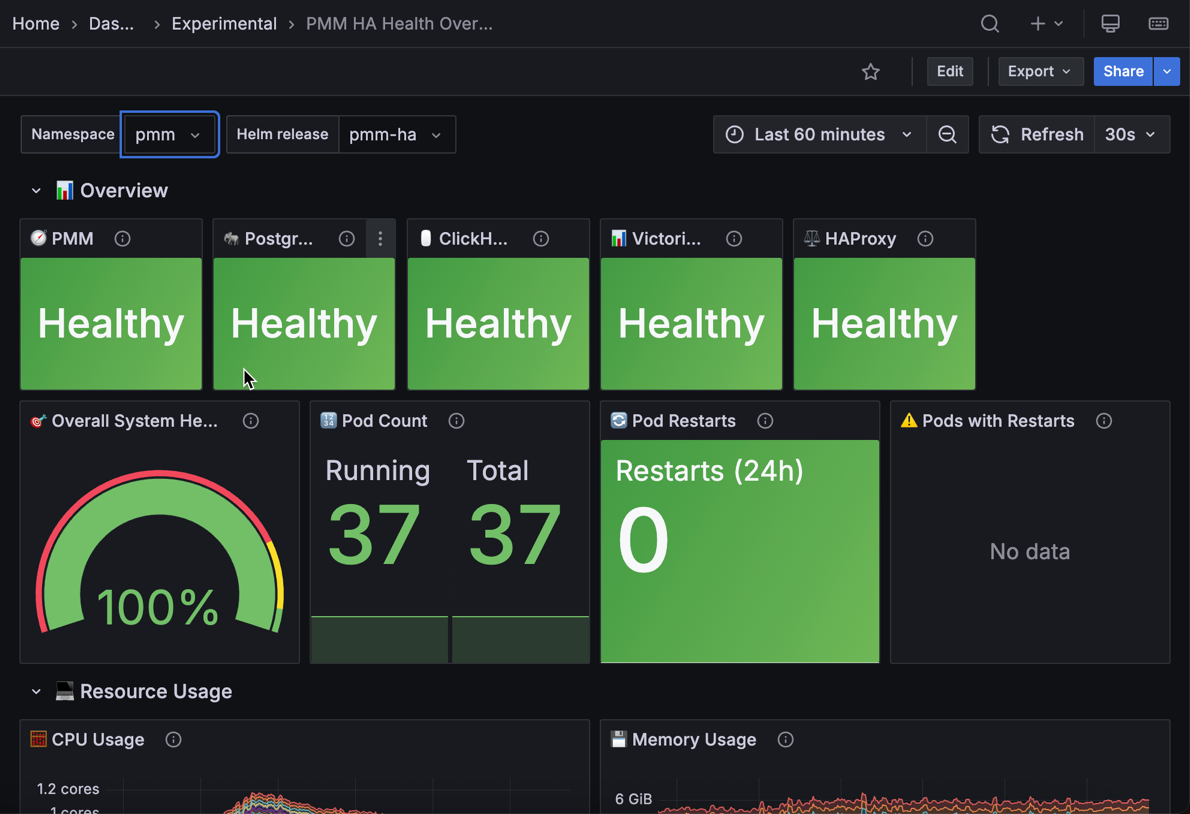
For each component, the dashboard compares the number of alive instances with the number expected and colors the result:
- Green: more than two-thirds of the expected instances are alive
- Yellow: between one-third and two-thirds are alive, so the component is degraded
- Red: one-third or fewer are alive, or PMM found no instances
The PMM HA badge in the side menu uses the same thresholds.
Overview
The Overview section shows whether each HA component has enough healthy instances, which nodes hold the leader and primary roles, and how stable your pods are.
PMM
Shows how many PMM Server replicas are alive, how many the cluster expects, and the resulting health percentage.
Use this to check that PMM has enough healthy replicas to keep running if one fails. PMM needs more than half of its replicas running. With three replicas, PMM keeps working if one goes down, but stops if two go down.
If Alive is lower than Expected, find the failed replica in the PMM Pods table and bring it back quickly, before another failure takes PMM down.
Leader PMM Instance
Shows the name of the PMM Server replica that is currently the leader, or No active instance when the dashboard can’t find a leader.
Use this to confirm which replica serves the PMM UI and API and runs cluster-wide tasks such as advisor checks and scheduled backups. After a failover or an upgrade, the name changes to the new leader.
If the panel shows No active instance right after a replica restarts, wait a minute or two for the dashboard to catch up with the new leader.
If it keeps showing No active instance while PMM works normally, check that the Namespace filter is set to the namespace where PMM HA runs.
PostgreSQL
Shows how many PostgreSQL instances are alive, how many are expected, and the resulting health percentage.
Use this to check that PMM’s internal database is healthy. PostgreSQL stores PMM’s critical data, including user accounts, dashboard settings, alert rules, and inventory.
If the primary fails, a replica is promoted automatically, and PMM can’t save changes during the switch, which usually takes less than 10 seconds.
If Alive stays lower than Expected, check the PostgreSQL Pods table to see whether the primary or a replica is down.
PostgreSQL Primary
Shows the name of the PostgreSQL instance that currently accepts writes.
Use this to confirm that a primary exists and to see whether it changed after a failover. A new name after a pod restart is expected.
If the panel shows no primary, PMM can’t save any changes. Check the PostgreSQL Pods table to find out which instances are down.
ClickHouse
Shows how many ClickHouse database and Keeper nodes are alive, how many are expected, and the resulting health percentage.
Use this to check whether QAN data is being collected and stored. If one node is down, QAN keeps working. If the cluster loses enough nodes to stop accepting data, QAN collection stops and queries that ran during the outage are not recorded and cannot be recovered.
If Alive is lower than Expected, check the ClickHouse Pods table to see whether a database node or a Keeper node failed. Losing Keeper nodes is more serious, because ClickHouse stops working when half or more of them are down.
VictoriaMetrics
Shows how many VictoriaMetrics instances are alive, how many are expected, and the resulting health percentage.
Use this to check that metrics are being collected, stored, and served to your dashboards.
If Alive is lower than Expected, check the VictoriaMetrics Components panel to see which part is affected.
VictoriaMetrics Components
Shows a health percentage for each VictoriaMetrics component:
vmagentcollects metrics from your monitored servicesvminsertreceives the collected metricsvmstoragestores the metricsvmselectanswers dashboard queriesvmauthhandles authentication
Use this to see which part of VictoriaMetrics has a problem and how it affects you. If vminsert or vmstorage fails, you can lose metrics or see gaps in your graphs. If vmselect fails, your dashboards might load slowly, but you don’t lose any data.
If a component is below 100%, check the VictoriaMetrics Pods table to find the failed pods.
HAProxy
Shows how many HAProxy instances are alive, how many are expected, and the resulting health percentage.
Use this to check that users can reach PMM. All PMM UI and API traffic goes through HAProxy, which sends it to the current leader.
If some HAProxy instances are down, PMM stays reachable through the remaining ones. If all are down, you can’t open the PMM UI or use the PMM API. Check the HAProxy Instances and HAProxy Backend Servers tables to see what failed.
Overall System Health
Shows the percentage of healthy pods across your whole PMM HA deployment, from 0 to 100%. A pod counts as healthy only if it’s ready and hasn’t restarted during the selected time range. Red means below 80%, yellow means 80-95%, and green means 95% or more.
Use this as the first check when something seems wrong. A pod that crashed and recovered still lowers the score until the restart falls outside the selected time range.
A single pod failure in a well-sized cluster usually drops the score to 95-98%, which needs no immediate action. Below 90%, you likely have several failures. Check the component panels in this section to find which ones.
Pod Count
Shows how many pods are running and how many pods the deployment has in total.
Use this to see at a glance how many pods are down.
If Running is lower than Total, find the missing pods in the pod status tables for each component, starting with PMM Pods.
If the panel shows No data, check that the Namespace filter is set to the namespace where PMM HA runs.
Pod Restarts
Shows the total number of pod restarts across your PMM HA deployment in the selected time range. Green means no restarts, yellow means one to four, and red means five or more.
Use this to spot crashing pods that look healthy. Kubernetes restarts crashed pods automatically, so a pod can show as running while it keeps failing.
If the value is yellow or red, check the Pods with Restarts table to find the unstable pods.
If the panel shows No data, check that the Namespace filter is set to the namespace where PMM HA runs.
Pods with Restarts
Shows each pod that restarted in the selected time range, with its restart count. A pod turns yellow after one restart and red after three or more.
Use this to find which components are unstable and whether the restarts match a change you made recently, such as an upgrade or a configuration change.
If a pod keeps restarting, it’s likely stuck in a crash loop. The usual causes are a configuration mistake or too little CPU or memory for the pod.
Run kubectl logs <pod-name> to see what’s causing the crashes, and check Resource Usage for memory or CPU pressure.
Resource Usage
Shows how much CPU and memory each pod uses over time.
If the CPU, memory, and storage panels are empty, check that you upgraded the pmm-ha Helm chart and not only the PMM Server image. These panels need the chart that ships with PMM 3.10.0 or later.
CPU Usage
Shows the CPU used by each pod over time, in cores, as a stacked area chart.
Use this to find pods that use more CPU than expected. Compare similar pods, such as all your vmselect pods. If one pod is consistently higher than the others, traffic might not be balanced, or that pod has a problem.
Gradual growth is normal as you monitor more services. Sudden spikes can point to heavy queries or batch jobs. High CPU on PostgreSQL, ClickHouse, or vmstorage pods during backups or maintenance is expected.
Memory Usage
Shows the memory used by each pod over time, in bytes, as a stacked area chart.
Use this to find pods that are close to their memory limit. Steady or slowly growing memory is normal. Sudden jumps usually mean large queries, data imports, or a memory leak.
If a pod restarts right after its memory peaks, Kubernetes stopped it for exceeding its memory limit (an OOM kill). Increase the pod’s memory limit in your Helm values, or find out what’s using the memory, such as query patterns or cache sizes.
Storage Usage
Shows how full the persistent volumes are for each data store.
PostgreSQL Storage
Shows how full the PostgreSQL persistent volume is, from 0 to 100%. Green means below 70%, yellow means 70-85%, and red means 85% or more.
Use this to plan storage before PMM stops working. PostgreSQL grows more slowly than metrics or QAN data, but when its volume is full, PostgreSQL stops accepting writes and PMM can’t save any changes.
When the gauge turns yellow, plan to expand the volume. When it turns red, expand the persistent volume or clean up old data, such as backup history and audit logs.
ClickHouse Storage
Shows how full the ClickHouse persistent volume is, from 0 to 100%. Green means below 70%, yellow means 70-85%, and red means 85% or more.
Use this to make sure that QAN data keeps being stored. ClickHouse usage grows with the number of queries you collect and your retention settings.
When the gauge turns yellow, plan to expand storage. When it turns red, act immediately: expand the persistent volume, reduce QAN data retention, or check that your slow query log isn’t capturing too many queries.
If the volume fills up, ClickHouse stops storing QAN data and the gaps can’t be recovered.
VictoriaMetrics Storage
Shows how full the VictoriaMetrics persistent volume is, from 0 to 100%. Green means below 70%, yellow means 70-85%, and red means 85% or more.
Use this to make sure that metrics keep being stored. Usage grows with the number of services you monitor, your retention period (30 days by default), and the number of distinct metrics you collect.
When the gauge turns yellow, plan to expand storage. When it turns red, act immediately, because VictoriaMetrics stops storing new metrics when the volume is full, which leaves gaps in all your dashboards.
Service Availability
Shows how healthy each component was over time.
Service Availability by Component
Shows the percentage of running pods for each component (PMM, PostgreSQL, ClickHouse, VictoriaMetrics, and HAProxy) over the selected time range. Green means 100%, yellow means 75-99%, orange means 50-74%, and red means below 50%.
Use this to find when a problem started and whether a component has recurring stability issues. Match drops to known events, such as upgrades or maintenance.
A healthy deployment stays at 100% except for short drops during planned maintenance or upgrades.
If a component drops repeatedly without a known cause, check its pod status table and the Pods with Restarts table.
PostgreSQL Pod’s Status
PostgreSQL Pods
Shows each PostgreSQL pod with its Status, Role, and Replication state. Status is UP when the pod is ready. Role is Primary or Replica. Replication is Healthy when the pod is the primary or a replica that receives changes from it, and Not streaming when a replica has stopped receiving changes. No data means the dashboard has no metrics for that pod.
Use this to see which PostgreSQL pod failed and whether replication is working. In a healthy cluster, one pod is the Primary, the others are Replicas, and all rows show UP and Healthy.
If the Primary shows DOWN, PostgreSQL automatically switches to one of the replicas, which usually takes less than 10 seconds. Once the switch is done, check that another pod shows as Primary. If no pod shows as Primary, PMM can’t save any changes.
If more than one pod shows as Primary, the cluster is in a split-brain state and needs immediate attention.
If a replica shows Not streaming, its copy of PMM’s data is falling behind and it can’t safely take over as primary. Check that replica’s pod logs to find out why replication stopped.
PMM Pod’s Status
PMM Pods
Shows each PMM Server replica with its Status (UP or DOWN) and Role (Leader or Follower). Replicas that are DOWN show No data in the Role column.
Use this to find which replica failed and which one is the current leader. In a healthy cluster, one replica is the Leader, the others are Follower, and all rows show UP.
If one replica shows DOWN, find out why and bring it back quickly. If half or more of your replicas show DOWN, PMM stops working until enough replicas recover.
During a failover, the previous leader can still show as Leader while DOWN for one to two minutes. This delay is expected. The current leader is the replica that shows both UP and Leader.
ClickHouse Pods
Shows each ClickHouse pod with its Component (pmmdb for database nodes, keeper for Keeper nodes), Status (UP when the pod is ready), and Role. Keeper nodes show Leader or Follower, and database nodes show Replica. The table doesn’t show how data is split across shards.
Use this to see which ClickHouse node failed. Database nodes store QAN data. Keeper nodes coordinate the cluster, and one of them is the Leader.
If a database node is DOWN, QAN keeps working with reduced capacity. If a Keeper node is DOWN, a new Keeper leader is elected within seconds, but ClickHouse stops working when half or more of the Keeper nodes are down. Bring failed Keeper nodes back first.
VictoriaMetrics Pods
Shows each VictoriaMetrics pod with its Component and Status. UP means Kubernetes reports the pod as running.
Use this to find which VictoriaMetrics pods failed after the VictoriaMetrics Components panel shows a problem.
Check vmstorage pods first, because each one stores part of your metrics and too many failures cause data loss. Next, check vminsert pods, because failures there leave gaps in data collection.
Failed vmselect, vmagent, or vmauth pods slow down dashboards or metric collection but don’t lose stored data.
HAProxy Pod’s Status
HAProxy Instances
Shows each HAProxy pod with its Status. UP means Kubernetes reports the pod as running.
Use this to find which HAProxy pods failed.
If one pod is DOWN, PMM stays reachable through the remaining pods. If all pods are DOWN, you can’t open the PMM UI or use the PMM API. Check the pod logs to find out whether the cause is configuration, resource limits, or connectivity.
HAProxy Backend Servers
Shows each server that HAProxy sends traffic to, grouped by Backend and Service, with its Status (UP or DOWN).
Use this to check which PMM services are reachable and receiving traffic.
For PMM Server, only the current leader shows UP at a time. The other PMM Server pods show DOWN on purpose, because only the leader accepts traffic. If you see no PMM Server entry showing UP, your cluster has no active leader and the PMM UI is unreachable.
For all other services, a brief DOWN during a pod restart is normal. If an entry stays DOWN for more than a few minutes, check the pod status tables for that component to find out what went wrong.
Dashboard usage tips
Filters
The Namespace filter lists only namespaces that run PMM HA.
Investigation workflow
When you notice problems, follow this approach to quickly figure out what’s wrong:
- Start with the Overall System Health gauge. If it’s below 95%, something’s wrong.
- Check the component panels in the Overview section to see which components have problems.
- Review Pod Restarts to see if pods are still crashing
- Look at the detailed pod status tables to find which specific pods failed.
- Check Resource Usage to see if pods ran out of CPU, memory, or storage.
- Review Service Availability timeline to see when things started going wrong.
Common patterns
- Storage full: Red storage gauges + pods crashing = expand storage immediately
- Resource exhaustion: High CPU/memory + pod restarts = increase resource limits
- Network issues: Multiple components partially down + high restart counts = investigate cluster networking
- Single pod failure: One component’s health percentage is below 100% but no restarts = stuck pod requiring manual intervention
Related alert rules
PMM HA Cluster creates built-in alert rules for failure scenarios such as a missing leader, split-brain, and quorum at risk. Configure a contact point to receive notifications without watching this dashboard.