Install HA Cluster
This sets up three PMM server replicas with Raft consensus, configures HAProxy for automatic load balancing, and deploys distributed databases (ClickHouse, VictoriaMetrics, PostgreSQL) via Kubernetes operators.
Before you start, make sure you understand how HA Cluster works. See Understand HA Cluster for an overview of the architecture and how failover works.
Understand two-step installation
PMM High Availability Cluster uses a two-step installation process that separates database operators from monitoring components. This separation simplifies upgrades and prevents cleanup issues when uninstalling.
Step 1: Install operators
Installs Kubernetes operators to create and manage database clusters:
- VictoriaMetrics operator
- ClickHouse operator
- PostgreSQL operator
Step 2: Install PMM HA
Installs monitoring infrastructure:
- 3 PMM monitoring servers with automatic leader election using Raft consensus (one active leader, two standbys)
- 3 HAProxy load balancers that route traffic to the active leader with automatic failover and pod anti-affinity
- ClickHouse cluster with 3 replicas and ClickHouse Keeper for Query Analytics storage (managed by Altinity ClickHouse Operator)
- VictoriaMetrics cluster for distributed metrics storage with multiple replicas (managed by VictoriaMetrics Operator)
- PostgreSQL cluster providing HA storage for Grafana metadata (managed by Percona PostgreSQL Operator)
To install PMM HA:
Get PMM HA Cluster running in 10 minutes with this simplified setup. For advanced configuration options, use the full installation option.
-
Add Percona Helm repositories:
helm repo add percona https://percona.github.io/percona-helm-charts/ helm repo update -
Create namespace. You can use any namespace name. Replace
pmmthroughout these steps with your chosen namespace.kubectl create namespace pmm -
Install required Kubernetes operators:
helm install pmm-operators percona/pmm-ha-dependencies --namespace pmm # Wait for all operators to be ready (typically 2-3 minutes) kubectl wait --for=condition=ready pod \ -l app.kubernetes.io/name=victoria-metrics-operator \ -n pmm --timeout=300s kubectl wait --for=condition=ready pod \ -l app.kubernetes.io/name=altinity-clickhouse-operator \ -n pmm --timeout=300s kubectl wait --for=condition=ready pod \ -l app.kubernetes.io/name=pg-operator \ -n pmm --timeout=300s -
Create PMM secret with your passwords:
kubectl create secret generic pmm-secret \ --from-literal=PMM_ADMIN_PASSWORD="your-secure-password" \ --from-literal=PMM_CLICKHOUSE_USER="clickhouse_pmm" \ --from-literal=PMM_CLICKHOUSE_PASSWORD="clickhouse-password" \ --from-literal=PMM_HA_VM_USERNAME="victoriametrics_pmm" \ --from-literal=PMM_HA_VM_PASSWORD="vm-password" \ --from-literal=PG_PASSWORD="postgres-password" \ --from-literal=GF_PASSWORD="grafana-password" \ --namespace pmm -
Install PMM HA:
helm install pmm-ha percona/pmm-ha --namespace pmm -
Wait for deployment to complete:
kubectl wait --for=condition=ready pod \
  -l app.kubernetes.io/name=pmm \
  -n pmm --timeout=600s
For more control over your deployment, including custom configurations, manual operator installation, and detailed verification at each stage.
Step 1: Add Percona Helm repositories
Add the required Helm repositories and update dependencies.
-
Add the repositories:
helm repo add percona https://percona.github.io/percona-helm-charts/ helm repo add vm https://victoriametrics.github.io/helm-charts/ helm repo add altinity https://docs.altinity.com/helm-charts/ helm repo update helm dependency update percona/pmm-ha-dependencies -
Verify the repository was added:
helm search repo percona/pmm-ha
Step 2: Create namespace
kubectl create namespace pmm
You can use any namespace name. Replace pmm throughout these steps with your chosen namespace.
Step 3: Install Kubernetes operators
PMM needs three operators to run on Kubernetes. You can install all of them with one command, or install them separately if you need custom configurations:
-
Choose your installation method:
Install all three operators with one command:
helm install pmm-operators percona/pmm-ha-dependencies --namespace pmmthis installs:
- VictoriaMetrics Operator
- Altinity ClickHouse Operator
- Percona PostgreSQL Operator
Install operators separately for custom configurations:
VictoriaMetrics Operator
helm repo add vm https://victoriametrics.github.io/helm-charts/
helm repo update
helm install victoria-metrics-operator vm/victoria-metrics-operator \
  --namespace pmm \
  --set admissionWebhooks.enabled=true
ClickHouse Operator
helm repo add altinity https://helm.altinity.com
helm repo update
helm install clickhouse-operator altinity/altinity-clickhouse-operator \
  --namespace pmm
PostgreSQL Operator
helm install postgres-operator percona/pg-operator --namespace pmm -
Wait for operators to be ready:
# VictoriaMetrics Operator
kubectl wait --for=condition=ready pod \
  -l app.kubernetes.io/name=victoria-metrics-operator \
  -n pmm --timeout=300s

# ClickHouse Operator
kubectl wait --for=condition=ready pod \
  -l app.kubernetes.io/name=altinity-clickhouse-operator \
  -n pmm --timeout=300s

# PostgreSQL Operator
kubectl wait --for=condition=ready pod \
  -l app.kubernetes.io/name=pg-operator \
  -n pmm --timeout=300s
Step 4: Create PMM credentials secret
The secret.create parameter is set to false by default in the Helm chart. You must create the pmm-secret manually before installing PMM HA.
This prevents Helm from overwriting your secrets during upgrades and keeps sensitive credentials out of your values.yaml file.
kubectl create secret generic pmm-secret \
  --from-literal=PMM_ADMIN_PASSWORD="your-secure-password" \
  --from-literal=PMM_CLICKHOUSE_USER="clickhouse_pmm" \
  --from-literal=PMM_CLICKHOUSE_PASSWORD="your-clickhouse-password" \
  --from-literal=PMM_HA_VM_USERNAME="victoriametrics_pmm" \
  --from-literal=PMM_HA_VM_PASSWORD="your-vm-password" \
  --from-literal=PG_PASSWORD="your-postgres-password" \
  --from-literal=GF_PASSWORD="your-grafana-password" \
  --namespace pmm
If you prefer to manage the secret as a file, create pmm-secret.yaml:
-
Create
pmm-secret.yaml:apiVersion: v1 kind: Secret metadata: name: pmm-secret namespace: pmm type: Opaque stringData: PMM_ADMIN_PASSWORD: "your-secure-password" PMM_CLICKHOUSE_USER: "clickhouse_pmm" PMM_CLICKHOUSE_PASSWORD: "your-clickhouse-password" PMM_HA_VM_USERNAME: "victoriametrics_pmm" PMM_HA_VM_PASSWORD: "your-vm-password" PG_PASSWORD: "your-postgres-password" GF_PASSWORD: "your-grafana-password" -
Apply it:
kubectl apply -f pmm-secret.yaml
Step 5: Install PMM HA
helm install pmm-ha percona/pmm-ha --namespace pmm
Use custom configuration when you need to adjust resource limits, storage sizes, replica counts, or service types beyond the defaults.
This approach gives you full control over your PMM HA deployment settings.
-
Create a
values.yamlfile:# Example custom values replicas: 3 # Number of PMM server replicas haproxy: service: type: LoadBalancer # Change to LoadBalancer for external access storage: size: 100Gi # Adjust storage size as needed pmmResources: requests: cpu: "2" memory: "4Gi" limits: cpu: "4" memory: "8Gi" -
Install with custom values:
helm install pmm-ha percona/pmm-ha --namespace pmm -f values.yaml
Step 6: Verify installation
  # Check PMM server pods
  kubectl get pods -l app.kubernetes.io/name=pmm -n pmm

  # Check HAProxy pods
  kubectl get pods -l app.kubernetes.io/name=haproxy -n pmm

  # Check operator-managed resources
  kubectl get vmcluster,postgrescluster,clickhouseinstallation -n pmm

  # Wait for all PMM pods to be ready
  kubectl wait --for=condition=ready pod \
    -l app.kubernetes.io/name=pmm \
    -n pmm --timeout=600s
Install PMM HA Cluster on a supported OpenShift version, including ROSA with hosted control planes. These steps address OpenShift-specific requirements: pod security contexts (restricted-v2 SCC), HAProxy port binding, and node exporter configuration.
-
Add Percona Helm repositories:
helm repo add percona https://percona.github.io/percona-helm-charts/ helm repo update -
Create a project. You can use any project name. Replace
pmmthroughout these steps with your chosen name.oc new-project pmm -
Install required operators. On OpenShift, the operators chart needs its own values file:
Create
values-operators-openshift.yaml:# restricted-v2 assigns user IDs from the project's range, so do not request fixed ones. altinity-clickhouse-operator: operator: image: registry: docker.io containerSecurityContext: runAsUser: null metrics: image: registry: docker.io containerSecurityContext: runAsUser: null crdHook: image: repository: docker.io/alpine/kubectl podSecurityContext: runAsUser: null victoria-metrics-operator: image: registry: docker.io env: - name: VM_CONFIG_RELOADER_IMAGE value: docker.io/victoriametrics/operator:config-reloader-v0.74.1 - name: VM_VMAGENTDEFAULT_IMAGE value: docker.io/victoriametrics/vmagent - name: VM_VMAUTHDEFAULT_IMAGE value: docker.io/victoriametrics/vmauth - name: VM_VMALERTDEFAULT_IMAGE value: docker.io/victoriametrics/vmalert podSecurityContext: runAsUser: null fsGroup: nullInstall the operators and wait for them to be ready:
helm install pmm-operators percona/pmm-ha-dependencies --namespace pmm \ -f values-operators-openshift.yaml # Wait for all operators to be ready (typically 2-3 minutes) kubectl wait --for=condition=ready pod \ -l app.kubernetes.io/name=victoria-metrics-operator \ -n pmm --timeout=300s kubectl wait --for=condition=ready pod \ -l app.kubernetes.io/name=altinity-clickhouse-operator \ -n pmm --timeout=300s kubectl wait --for=condition=ready pod \ -l app.kubernetes.io/name=pg-operator \ -n pmm --timeout=300s -
Create PMM secret with your passwords:
kubectl create secret generic pmm-secret \
  --from-literal=PMM_ADMIN_PASSWORD="your-secure-password" \
  --from-literal=PMM_CLICKHOUSE_USER="clickhouse_pmm" \
  --from-literal=PMM_CLICKHOUSE_PASSWORD="clickhouse-password" \
  --from-literal=PMM_HA_VM_USERNAME="victoriametrics_pmm" \
  --from-literal=PMM_HA_VM_PASSWORD="vm-password" \
  --from-literal=PG_PASSWORD="postgres-password" \
  --from-literal=GF_PASSWORD="grafana-password" \
  --namespace pmm
The chart creates a separate read-only ClickHouse user for the Grafana data source and stores its credentials in the
pmm-ha-clickhouse-datasourcesecret. You don’t need to add them topmm-secret. To set them yourself, use theclickhouse.datasource.userandclickhouse.datasource.passwordHelm values. -
Create
values-openshift.yamlwith the required OpenShift settings:# restricted-v2 assigns user and group IDs from the project's range. Don't request fixed ones. # openshift: true covers PMM Server and PMM Client; the other components are unpinned below. openshift: true kube-state-metrics: securityContext: enabled: false # restricted-v2 doesn't allow hostNetwork, hostPID or hostPath, so the bundled node exporter # can't run. Scrape OpenShift's own node exporter in openshift-monitoring instead. prometheus-node-exporter: enabled: false nodeExporter: mode: openshift # restricted-v2 drops NET_BIND_SERVICE, so HAProxy can't bind 443. Expose it with a Route. haproxy: containerPorts: https: 8443 podSecurityContext: runAsUser: null # The PostgreSQL PMM sidecar dials 443 unless the port is set. pg-db: pmm: serverHost: pmm-ha-haproxy:8443 containerSecurityContext: runAsUser: null clickhouse: podSecurityContext: runAsUser: null runAsGroup: null fsGroup: null keeper: podSecurityContext: runAsUser: null runAsGroup: null fsGroup: null jobs: podSecurityContext: runAsUser: null centralBackupStorage: tools: podSecurityContext: runAsUser: null fsGroup: null victoriaMetrics: useStrictSecurity: false -
Install PMM HA:
helm install pmm-ha percona/pmm-ha --namespace pmm -f values-openshift.yaml -
Verify installation:
kubectl rollout status statefulset/pmm-ha -n pmm --timeout=900s

kubectl get pods -l app.kubernetes.io/component=pmm-server -n pmm
kubectl get pods -l app.kubernetes.io/name=haproxy -n pmm
kubectl get vmcluster,postgrescluster,clickhouseinstallation -n pmm
Install PMM HA into multiple namespaces
You can run more than one PMM HA Cluster on the same Kubernetes cluster, for example a disaster recovery target or an isolated test instance next to production. Each instance runs in its own namespace, with its own PMM Server replicas, databases, and PMM UI.
To use a second instance as a disaster recovery target, see Restore into another namespace. It requires copying the source’s pmm-secret before you install.
Requirements for each additional instance
The operators you installed in Step 1 watch all namespaces, so install them only once per cluster. Don’t install the pmm-ha-dependencies chart again in the new namespace. The second installation fails with an invalid ownership metadata error.
Each additional instance needs:
- Its own namespace: Some PMM HA resources have fixed names, such as
pmm-ha-haproxyandmonitoring-service. Two instances in the same namespace conflict, whatever their release names are. - A unique Helm release name: The chart creates cluster-wide roles named after the release, so two instances can’t share a release name, even in different namespaces. The name doesn’t need to contain
pmm-ha. - Its own
pmm-secret: Create it in the new namespace before you install. - Node exporter disabled: The bundled node exporter uses host port 9100, so only one instance per cluster can run it. Disable it on every additional instance.
Upgrade the operators first if you installed PMM HA before PMM 3.10.0
In earlier versions, the PostgreSQL and ClickHouse operators watch only their own namespace. If you install a second instance before upgrading them, its PostgreSQL and ClickHouse clusters are never created, and the PMM pods stay in Init:1/2 indefinitely.
Upgrade the operators
To upgrade the operators:
-
Find the release name of your operators installation, usually
pmm-operators:helm list --namespace pmm -
Upgrade it:
helm upgrade pmm-operators percona/pmm-ha-dependencies --namespace pmm -
Wait for the new operator pods to roll out:
kubectl rollout status deployment -l app.kubernetes.io/name=pg-operator -n pmm --timeout=300s
kubectl rollout status deployment -l app.kubernetes.io/name=altinity-clickhouse-operator -n pmm --timeout=300s
kubectl rollout status deployment -l app.kubernetes.io/name=victoria-metrics-operator -n pmm --timeout=300s
Install an additional instance
This example installs a second instance with the release name pmm-dr in the pmm-dr namespace.
-
Create the namespace:
kubectl create namespace pmm-dr -
Create the
pmm-secretin the new namespace, the same way as for your first instance. Replace--namespace pmmwith--namespace pmm-dr. -
Install PMM HA with a unique release name and the node exporter disabled:
helm install pmm-dr percona/pmm-ha --namespace pmm-dr \
  --set prometheus-node-exporter.enabled=false \
  --set kube-state-metrics.enabled=false
Disabling
kube-state-metricsis optional. Keep it if you want Kubernetes object metrics in this instance.On OpenShift, install with the same
values-openshift.yamlfile as your first instance. It already disables the bundled node exporter and uses the OpenShift one, so every instance collects node metrics. -
Verify the installation:
kubectl get pods -n pmm-dr
kubectl get vmcluster,postgrescluster,clickhouseinstallation -n pmm-dr
What each instance monitors
Each instance collects only from its own namespace. If you disable a monitoring component on an instance, that instance doesn’t collect those metrics, and it doesn’t reuse them from the first instance. Basic node and container metrics are still collected on every instance.
Namespaces are not a security boundary
Each instance can read Kubernetes Secrets across the whole cluster, and each copy of kube-state-metrics sees the whole cluster. Don’t use separate namespaces to isolate PMM HA instances between untrusted teams.
Access PMM after installation
Access via port-forward
For immediate testing:
-
Create a port-forward to the HAProxy service:
kubectl port-forward -n pmm svc/pmm-ha-haproxy 8443:443kubectl port-forward -n pmm svc/pmm-ha-haproxy 8443:8443 -
Open
https://localhost:8443in your browser. -
Log in with the default credentials:
admin/value fromPMM_ADMIN_PASSWORDin your secret.
Use service endpoints
PMM HA exposes multiple service endpoints for different purposes. For all external connections to PMM (including PMM Clients, web browsers, API calls, and Percona Operators) always use pmm-ha-haproxy.
This load balancer automatically routes traffic to the active PMM leader and handles failover transparently.
| Service | Description | Port | Use for |
|---|---|---|---|
pmm-ha-haproxy |
HAProxy load balancer with automatic failover | 443 (HTTPS), 8443 on OpenShift | All external access: PMM Clients, web browser, API calls, Percona Operators |
monitoring-service |
Headless service for direct PMM pod access. Do not use for external connections as it bypasses HAProxy and can cause failures during leader changes | 8443 (HTTPS) | Internal cluster communication only |
Access database components (advanced)
For direct database access or troubleshooting, PMM HA also exposes:
| Component | Service Name | Port | Purpose |
|---|---|---|---|
| ClickHouse | clickhouse-[release-name] |
8123 (HTTP), 9000 (Native) | Direct QAN database access |
| VictoriaMetrics | vmstorage-[release-name] |
8482 | Direct metrics storage access |
| PostgreSQL | [release]-pg-db-[cluster] |
5432 | Direct Grafana database access |
Configure PMM HA
Configure external access
HAProxy is only accessible within the Kubernetes cluster by default, which is recommended for security.
To enable external access when required, choose the configuration that matches your environment:
Best for: Internal cluster access only (recommended for security)
ClusterIP makes PMM accessible only within the Kubernetes cluster. This is the default setting and requires no configuration changes.
Option 1: Access from within the cluster
Use this DNS endpoint from any pod in the cluster:
https://pmm-ha-haproxy.pmm.svc.cluster.local:443
Option 2: Port-forward for local testing
Access PMM from your local machine for testing or administration:
-
Create a port-forward to the HAProxy service:
kubectl port-forward -n pmm svc/pmm-ha-haproxy 8443:443 -
Open
https://localhost:8443in your browser. -
Leave the port-forward running while you access PMM. Press
Ctrl+Cto stop.
Best for: AWS deployments requiring external access
-
Create a
values.yamlfile with AWS-specific annotations:haproxy: service: type: LoadBalancer annotations: service.beta.kubernetes.io/aws-load-balancer-type: "nlb" service.beta.kubernetes.io/aws-load-balancer-scheme: "internal" # or "internet-facing" -
Apply the configuration:
helm upgrade pmm-ha percona/pmm-ha --namespace pmm -f values.yaml -
Get the load balancer endpoint:
kubectl get svc pmm-ha-haproxy -n pmmLook for the
EXTERNAL-IPcolumn and connect viahttps://<EXTERNAL-IP>:443.
AWS best practices
- Use Network Load Balancer (NLB) for better performance and lower latency
- Use
internalscheme for VPC-only access to keep PMM private - Allocate Elastic IPs in advance for stable public addresses
Best for: GCP deployments requiring external access
Optional: Reserve a static IP address
-
Reserve a static IP in your region:
gcloud compute addresses create pmm-ip --region=us-central1 -
Get the IP address:
gcloud compute addresses describe pmm-ip \
  --region=us-central1 \
  --format="value(address)"
Configure and deploy
-
Create a
values.yamlfile:haproxy: service: type: LoadBalancer loadBalancerIP: "35.x.x.x" # Optional: use reserved IP annotations: networking.gke.io/load-balancer-type: "Internal" # Remove for public access -
Apply the configuration:
helm upgrade pmm-ha percona/pmm-ha --namespace pmm -f values.yaml -
Get the load balancer endpoint:
kubectl get svc pmm-ha-haproxy -n pmm
GCP best practices
- Reserve static IPs in advance to maintain consistent access endpoints
- Use internal load balancer for VPC-only access
Best for: Azure deployments requiring external access
Optional: Create a static public IP
-
Create a static IP in your AKS cluster’s resource group:
az network public-ip create \ --resource-group MC_myResourceGroup_myAKSCluster_eastus \ --name pmmPublicIP \ --sku Standard \ --allocation-method static -
Get the IP address:
az network public-ip show \
  --resource-group MC_myResourceGroup_myAKSCluster_eastus \
  --name pmmPublicIP \
  --query ipAddress \
  --output tsv
Configure and deploy
-
Create a
values.yamlfile:haproxy: service: type: LoadBalancer loadBalancerIP: "20.x.x.x" # Optional: use reserved IP annotations: service.beta.kubernetes.io/azure-load-balancer-internal: "true" # Remove for public -
Apply the configuration:
helm upgrade pmm-ha percona/pmm-ha --namespace pmm -f values.yaml -
Get the load balancer endpoint:
kubectl get svc pmm-ha-haproxy -n pmm
Azure best practices
- Create public IPs in the AKS cluster’s infrastructure resource group (MC_*)
- Use Standard SKU for production workloads
Best for: Bare-metal and on-premise Kubernetes clusters
Prerequisites
-
Install MetalLB in your cluster:
kubectl apply -f https://raw.githubusercontent.com/metallb/metallb/v0.13.12/config/manifests/metallb-native.yaml -
Create an IP address pool configuration file (
metallb-pool.yaml):apiVersion: metallb.io/v1beta1 kind: IPAddressPool metadata: name: production-pool namespace: metallb-system spec: addresses: - 192.168.1.100-192.168.1.110 -
Apply the IP pool configuration:
kubectl apply -f metallb-pool.yaml
Configure and deploy PMM
-
Create a
values.yamlfile:haproxy: service: type: LoadBalancer loadBalancerIP: "192.168.1.100" annotations: metallb.universe.tf/address-pool: "production-pool" -
Apply the configuration:
helm upgrade pmm-ha percona/pmm-ha --namespace pmm -f values.yaml -
Verify the load balancer endpoint:
kubectl get svc pmm-ha-haproxy -n pmm
MetalLB best practices
- Pre-allocate IP ranges that don’t conflict with DHCP
- Use Layer 2 mode for simplicity or BGP mode for advanced routing
Best for: Testing environments or when LoadBalancer is unavailable
NodePort exposes PMM on a static port on each cluster node.
-
Create a
values.yamlfile:haproxy: service: type: NodePort -
Apply the configuration:
helm upgrade pmm-ha percona/pmm-ha \ --namespace pmm \ -f values.yaml -
Get the assigned NodePort number:
kubectl get svc pmm-ha-haproxy -n pmm \ -o jsonpath='{.spec.ports[0].nodePort}' -
Access PMM using any node IP and the NodePort:
https://<any-node-ip>:<nodeport>
NodePort limitations
- Ports are typically in the range 30000-32767
- You must manage firewall rules to allow access to this port
- Consider using a cloud-specific LoadBalancer for production
Best for: OpenShift deployments
On OpenShift, expose PMM HA externally using an OpenShift Route. Do not use the chart’s ingress.enabled setting — it targets monitoring-service directly and bypasses HAProxy, losing leader routing.
HAProxy listens on port 8443 on OpenShift (set in values-openshift.yaml). The Route passes TLS through to HAProxy.
-
Create a
pmm-ha-route.yamlfile:apiVersion: route.openshift.io/v1 kind: Route metadata: name: pmm-ha namespace: pmm spec: to: kind: Service name: pmm-ha-haproxy port: targetPort: 8443 tls: termination: passthrough -
Apply the Route:
kubectl apply -f pmm-ha-route.yaml -
Get the Route hostname:
kubectl get route pmm-ha -n pmm -o jsonpath='{.status.ingress[0].host}' -
Access PMM at
https://<route-hostname>.
Set up custom SSL certificates
PMM ships with self-signed SSL certificates. For production, provide your own certificates:
certs:
  name: pmm-certs
  files:
    certificate.crt: |
      -----BEGIN CERTIFICATE-----
      ... your certificate ...
      -----END CERTIFICATE-----
    certificate.key: |
      -----BEGIN PRIVATE KEY-----
      ... your private key ...
      -----END PRIVATE KEY-----
    ca-certs.pem: |
      -----BEGIN CERTIFICATE-----
      ... your CA certificate ...
      -----END CERTIFICATE-----
    dhparam.pem: |
      -----BEGIN DH PARAMETERS-----
      ... your DH parameters ...
      -----END DH PARAMETERS-----
Manage the encryption key
PMM encrypts the credentials it stores for monitored services. All replicas share one PostgreSQL database and must use the same encryption key. A replica with a different key cannot decrypt credentials written by the others, and PMM stops monitoring those services.
The chart generates and manages the key for you, storing it in a Kubernetes secret named pg-encryption-key. Upgrades and rescaling reuse the same key automatically.
Back up the key
Back up the key after installation. Without it, PMM can’t decrypt stored credentials after a restore. The file holds the key in plain text, so store it as securely as the secret itself:
kubectl get secret pg-encryption-key -n pmm -o jsonpath='{.data.key}' | base64 -d > pmm-encryption.key
Reinstall against existing data
When reinstalling against existing PostgreSQL data, the encryption key must stay the same. PMM cannot decrypt credentials that were encrypted with a different key. The pg-encryption-key secret survives helm uninstall and is preserved on reinstall.
If you manually delete it, a fresh install generates a new key and the replicas refuse to start. Restore the key from your backup before reinstalling:
kubectl create secret generic pg-encryption-key -n pmm --from-file=key=pmm-encryption.key
If you already reinstalled without restoring the key, run these commands in order:
kubectl delete secret pg-encryption-key -n pmm
kubectl create secret generic pg-encryption-key -n pmm --from-file=key=pmm-encryption.key
kubectl delete pod -l app.kubernetes.io/name=pmm -n pmm
Use your own key
To use your own key instead of the one the chart generates, create the secret before installing the chart:
-
Generate the key:
docker run --rm --entrypoint /usr/sbin/pmm-encryption-rotation percona/pmm-server:3 --generate-key > pmm-encryption.key -
Create the secret:
kubectl create secret generic pg-encryption-key -n pmm --from-file=key=pmm-encryption.key -
Install the chart. It detects the existing secret and uses your key.
Key rotation is not supported for the HA Helm chart yet. The replicas read the key from a read-only secret, which the rotation tool cannot replace. See PMM data encryption for the key format.
Configure storage
PMM HA stores data in distributed databases, not on the PMM server pods themselves. To increase storage capacity, configure the ClickHouse and VictoriaMetrics clusters.
ClickHouse storage (Query Analytics data)
clickhouse:
  storage:
    size: 100Gi  # Increase for longer QAN retention
    storageClassName: "fast-ssd"
VictoriaMetrics storage (metrics data)
victoriaMetrics:
  vmstorage:
    storage:
      size: 100Gi  # Increase for longer metrics retention
      storageClassName: "fast-ssd"
Example: Combined storage configuration
clickhouse:
  storage:
    size: 200Gi
    storageClassName: "fast-ssd"

victoriaMetrics:
  vmstorage:
    storage:
      size: 200Gi
      storageClassName: "fast-ssd"
Apply the configuration:
helm upgrade pmm-ha percona/pmm-ha --namespace pmm -f values.yaml
Storage sizing
- ClickHouse: Scales with Query Analytics volume and retention period
- VictoriaMetrics: Scales with number of monitored services and metrics retention
See Plan your resources for sizing guidelines.
Set resource limits
Configure resource requests and limits for PMM server pods:
pmmResources:
  requests:
    cpu: "2"
    memory: "4Gi"
  limits:
    cpu: "4"
    memory: "8Gi"
Customize environment variables
PMM HA uses environment variables to control its behavior. Some are pre-configured by the Helm chart and should stay as they are. Others you can adjust to match your requirements.
Pre-configured HA variables
The Helm chart sets these variables automatically. They control how the replicas find each other, elect a leader, and connect to the shared databases.
Leave these values unchanged, as modifying them can break the cluster:
pmmEnv:
  PMM_ENABLE_UPDATES: "0"                   # Disables version checks. Upgrade with Helm to keep all replicas in sync
  PMM_HA_ENABLE: "1"                        # Enable HA clustering
  PMM_HA_GOSSIP_PORT: "9096"                # Gossip protocol port
  PMM_HA_RAFT_PORT: "9097"                  # Raft consensus port
  PMM_HA_GRAFANA_GOSSIP_PORT: "9094"        # Grafana gossip port
  PMM_DISABLE_BUILTIN_CLICKHOUSE: "1"       # Disables the ClickHouse inside the pmm-server pod so PMM uses the HA cluster. Does not enable external databases
  PMM_DISABLE_BUILTIN_POSTGRES: "1"         # Disables the PostgreSQL inside the pmm-server pod so PMM uses the HA cluster. Does not enable external databases
  PMM_CLICKHOUSE_IS_CLUSTER: "1"            # Enable ClickHouse clustering
External databases are not supported
PMM HA comes with its own ClickHouse, VictoriaMetrics, and PostgreSQL. They run as separate pods, but they belong to the PMM deployment: the Helm chart sets them up and keeps them running for you.
You can’t swap these databases for ones you run yourself, like an existing ClickHouse cluster or RDS. The chart controls where PMM connects, and that can’t be changed.
If you’re used to standalone PMM, note that PMM_DISABLE_BUILTIN_CLICKHOUSE and PMM_DISABLE_BUILTIN_POSTGRES work differently here. In standalone, they let you switch to your own database. In HA, they’re part of the internal setup and must stay set to 1.
Built-in alert rules
When the cluster first starts, PMM adds ten alert rules and turns them on: six that warn you about problems in the cluster, such as a missing leader or a volume running out of space, and four that warn you when one of PMM’s own components stops responding. To receive notifications, configure a contact point.
If you don’t want some of these rules, set the variable for that group to "false" in pmmEnv before you install. You can turn off one group or both:
pmmEnv:
  PMM_ENABLE_HA_ALERTS: "false"          # skip the High Availability rules
  PMM_ENABLE_COMPONENT_ALERTS: "false"   # skip the PMM component rules
To change the rules or turn them off later, see Manage the built-in alert rules.
Adjust data retention and other settings
Set the data retention period with the chart’s dataRetentionDays value, in whole days. It applies to both metrics and Query Analytics data, and the default is 30 days. Choose a period that matches your compliance requirements and storage capacity:
dataRetentionDays: 90
To change the period later, update values.yaml and run helm upgrade. In HA, you can’t change it under Configuration > Settings > Advanced Settings, where the field is read-only. Don’t set PMM_DATA_RETENTION in pmmEnv: the chart derives it from dataRetentionDays and fails the install or upgrade if you set it.
If you shorten the period, PMM deletes the older data, and you can’t recover it.
To check the period a replica is using, search its log:
kubectl exec -n pmm pmm-ha-0 -c pmm-ha -- grep 'Data retention' /srv/logs/pmm-managed.log | tail -1
To set other PMM environment variables, add them to pmmEnv. For all available variables, see PMM environment variables.
Review Helm parameters reference
| Parameter | Description | Default |
|---|---|---|
replicas |
Number of PMM server replicas | 3 |
image.repository |
PMM server image repository | percona/pmm-server |
image.tag |
PMM server image tag | 3.6.0 |
image.pullPolicy |
Image pull policy | IfNotPresent |
secret.create |
Create secret automatically | false |
secret.name |
Name of the PMM secret | pmm-secret |
storage.size |
PVC size | 10Gi |
storage.storageClassName |
Storage class name | "" |
haproxy.replicaCount |
Number of HAProxy replicas | 3 |
haproxy.service.type |
HAProxy service type | ClusterIP |
clickhouse.cluster.replicas |
ClickHouse replicas | 3 |
victoriaMetrics.vmstorage.replicaCount |
VictoriaMetrics storage replicas | 3 |
pg-db.enabled |
Enable PostgreSQL cluster | true |
pg-db.pmm.enabled |
Enable automatic PMM monitoring of PostgreSQL | true |
For a complete list of parameters, see the values.yaml file.
Use and maintain PMM HA
Connect monitoring clients
To connect a PMM client to the HA cluster, use the HAProxy service endpoint:
# From within the Kubernetes cluster
pmm-admin config \
  --server-url=https://admin:your-password@pmm-ha-haproxy:443 \
  --server-insecure-tls

# Using service token (recommended for automation)
pmm-admin config \
  --server-url=https://service_token:your-token@pmm-ha-haproxy:443 \
  --server-insecure-tls
Monitor PostgreSQL databases
To add PostgreSQL monitoring to PMM HA, see Deploy a PMM client in the Percona PostgreSQL Operator documentation.
When configuring, use pmm-ha-haproxy.pmm.svc.cluster.local as the PMM server hostname.
Manage service tokens
To retrieve the auto-generated PostgreSQL monitoring token:
kubectl get secret pg-pmm-secret -n pmm \
  -o jsonpath='{.data.PMM_SERVER_TOKEN}' | base64 -d
To create additional service tokens manually, see the PMM documentation on service accounts.
Monitor HA features
Monitor cluster health
Use the PMM HA Health Overview dashboard to monitor your entire HA deployment from a single view.
This dashboard shows alive versus expected instance counts, active or primary nodes, replication health, and real-time status for PMM, PostgreSQL, ClickHouse, VictoriaMetrics, and HAProxy.
Access the dashboard from PMM HA > Overview in the main menu, or from All Dashboards > Browse all dashboards > PMM Health > PMM HA Health Overview.
The dashboard helps you quickly identify component failures, resource constraints, and stability issues across your high-availability infrastructure.
For detailed information about each panel and what to check, see the PMM HA Health Overview dashboard reference.
Identify the health status
To quickly check whether all your PMM Server nodes are responding, look at the badge next to PMM HA in the side menu:
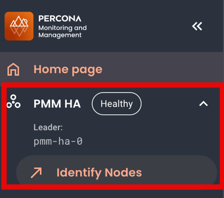
The badge shows the overall health of your cluster, based on how many nodes respond:
- Healthy indicates all nodes are in “alive” status and functioning normally
- Degraded means approximately one-third of your nodes are not responding
- Critical warns that two-thirds of your nodes are unavailable
- Down signals that all nodes have failed to respond
Check HA roles in Inventory
After a failover or an upgrade, check the PMM Server nodes in Inventory to see which node is the current leader and make sure every node is running:
-
Go to PMM HA > Identify Nodes.
-
In the Node Name column, check the badge next to each node name:
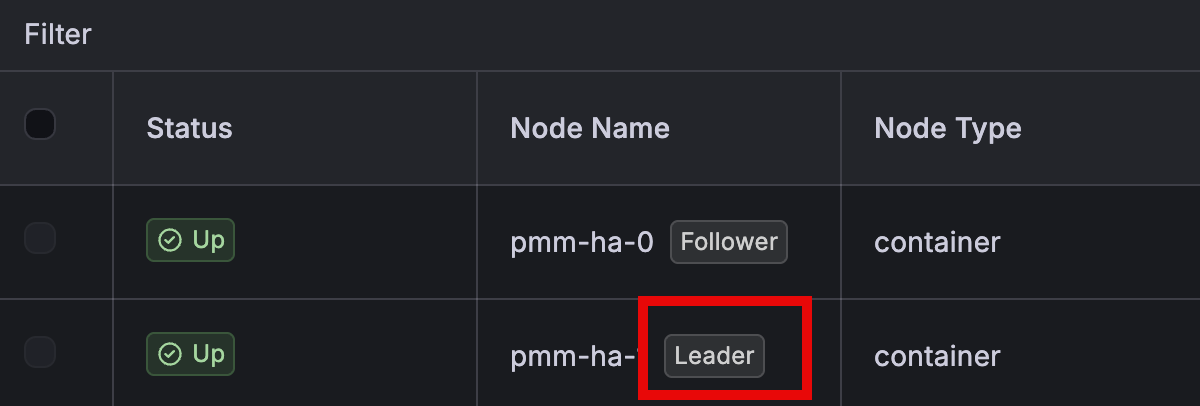
- Leader: the node that serves the PMM UI and API, and runs cluster-wide tasks such as advisor checks and scheduled backups
- Follower: a standby node that can become the leader if the current leader fails
-
In the Status column, check that every node shows Up.
Get alerted about cluster problems
The PMM HA badge in the side menu and the PMM HA > Overview dashboard show the state of the cluster right now, but they don’t notify you when that state changes. To get notified when the cluster has no leader, splits, keeps switching leaders, loses a node, or is one node away from stopping, configure a contact point. The built-in alert rules that check for these problems are already turned on.
Back up your deployment
Backups are turned off by default. To back up PMM HA to S3-compatible storage or a shared volume, and restore it in place or into another namespace, see Back up and restore PMM HA Cluster.
Scale your deployment
Scale PMM server replicas
PMM Server nodes in an HA cluster are managed through Helm, not through the PMM UI. This means you cannot delete them from the Inventory page.
Deleting a node would drop it from monitoring without stopping the pod. Use helm upgrade to add or remove replicas instead.
When you scale PMM HA up or down, all PMM pods will be recreated. This happens because the PMM_HA_PEERS environment variable is dynamically generated based on replica count and must be updated on all pods.
Impact:
- Brief service interruption during pod recreation (typically < 1 minute per pod)
- HAProxy continues routing to available pods during rollout
- No data loss (distributed storage)
- Rolling update strategy minimizes downtime
- The Nodes of removed replicas get removed from Inventory > Nodes once the remaining pods restart, unless one of the conditions in the note below applies
When PMM keeps a stale Node
The cleanup runs on each replica at startup, so its log messages appear on whichever pod restarted first. PMM logs a warning (component=ha) and keeps the Node when:
- the Node still monitors services, for example a remote instance that was added from that replica. Re-add those services from a running replica; the next restart removes the Node
PMM_HA_PEERScarries no readable node names, for example bare IP addressesPMM_HA_PEERSnames no peers at all, or does not list the pod doing the cleanup. Both contradict the peer list the chart generates, so they are reported as a failure to look for stale Nodes
To see what was skipped:
kubectl exec <pmm-pod> -n pmm -c pmm-ha -- grep -i "stale HA node" /srv/logs/pmm-managed.log
To scale PMM server replicas:
helm upgrade pmm-ha percona/pmm-ha \
  --namespace pmm \
  --set replicas=5
Scale HAProxy replicas
helm upgrade pmm-ha percona/pmm-ha \
  --namespace pmm \
  --set haproxy.replicaCount=5
Scale database components
helm upgrade pmm-ha percona/pmm-ha \
  --namespace pmm \
  --set clickhouse.cluster.replicas=5
helm upgrade pmm-ha percona/pmm-ha \
  --namespace pmm \
  --set victoriaMetrics.vmselect.replicaCount=3 \
  --set victoriaMetrics.vminsert.replicaCount=3 \
  --set victoriaMetrics.vmstorage.replicaCount=5
PostgreSQL scaling is managed through the Percona PostgreSQL Operator. See the Operator documentation for details.
Pre-pull images before scaling
PMM images can be large (several GB). Before performing upgrades or scaling operations, pre-pull images on all nodes to avoid timeout issues:
# Get list of nodes
kubectl get nodes

# For each node, pre-pull the image (example for node1)
kubectl debug node/node1 -it --image=percona/pmm-server:3.6.0
Monitor cluster health
To check the health of your PMM HA deployment:
# Check all PMM HA resources
kubectl get all -l app.kubernetes.io/instance=pmm-ha -n pmm

# Check PMM server pods
kubectl get pods -l app.kubernetes.io/name=pmm -n pmm

# Check HAProxy pods
kubectl get pods -l app.kubernetes.io/name=haproxy -n pmm

# Check ClickHouse cluster
kubectl get clickhouseinstallation -n pmm
kubectl get pods -l clickhouse.altinity.com/app=chop -n pmm

# Check VictoriaMetrics cluster
kubectl get vmcluster,vmagent,vmauth -n pmm

# Check PostgreSQL cluster
kubectl get postgrescluster -n pmm
kubectl get pods -l postgres-operator.crunchydata.com/cluster -n pmm

# View PMM server logs
kubectl logs -l app.kubernetes.io/name=pmm -n pmm --tail=100

# View HAProxy logs
kubectl logs -l app.kubernetes.io/name=haproxy -n pmm --tail=100
Query HA status via API
For programmatic access to cluster status and node information, PMM HA provides REST API endpoints. These endpoints let you integrate HA monitoring into automation scripts, monitoring dashboards, or alerting systems.
Available endpoints:
GET /v1/ha/status: Check if PMM is running in HA modeGET /v1/ha/nodes: Get cluster node information with roles and availability
For complete endpoint documentation, request/response examples, and integration patterns, see the HA status API reference.
Modify your PMM HA deployment
Use Helm upgrades to modify settings like resource limits, replica counts, or storage sizes. Each pod restarts sequentially, with a brief interruption when the active leader pod restarts and a new leader is elected. To upgrade to a newer PMM release, upgrade PMM HA Cluster using Helm. Upgrading HA clusters is not supported before PMM 3.10.0 and percona/pmm-ha chart 1.8.0.
Change individual settings using command-line flags.
-
Update the setting you want to change:
# Example: Increase PMM server replicas
helm upgrade pmm-ha percona/pmm-ha \
  --namespace pmm \
  --set replicas=5
Common modifications:
# Increase HAProxy replicas --set haproxy.replicaCount=5 # Adjust resource limits --set pmmResources.limits.cpu="8" \ --set pmmResources.limits.memory="16Gi" # Change storage size --set storage.size=200Gi -
Monitor the rollout:
kubectl rollout status statefulset pmm-ha -n pmm
Modify multiple settings using a values file.
-
Edit your
values.yamlfile with the changes you need:replicas: 5 haproxy: replicaCount: 5 pmmResources: limits: cpu: "8" memory: "16Gi" -
Apply your changes:
helm upgrade pmm-ha percona/pmm-ha \ --namespace pmm \ -f values.yaml -
Monitor the rollout:
kubectl rollout status statefulset pmm-ha -n pmm
Keep your values file
Save your values.yaml file for future updates. This ensures consistent configuration across modifications.
Roll back configuration changes
If a configuration change causes issues, roll back to a previous release:
-
List available revisions:
helm history pmm-ha -n pmm -
Roll back to a specific revision:
helm rollback pmm-ha <revision-number> -n pmm
For example, to roll back to revision 2:
helm rollback pmm-ha 2 -n pmm
This restores your previous Helm release configuration, reverting any settings changes you made.
Scaling limitations
Scaling down to single replica
When scaling down to a single PMM replica (from 3 to 1), ensure the Raft leader is on pmm-0 before scaling. Kubernetes StatefulSets remove pods in reverse ordinal order (highest first).
- Scaling 3→1 removes pmm-2 and pmm-1, keeping only pmm-0
- If the Raft leader is on pmm-1 or pmm-2 when you scale down, PMM will become unreachable
Workaround: Check leader status before scaling:
kubectl exec -it pmm-ha-0 -n pmm -- pmm-admin status
Only scale down after confirming pmm-0 is the leader.
VictoriaMetrics limitations
PMM HA Cluster doesn’t support the following VictoriaMetrics Enterprise features:
- Prometheus data imports: you can’t import existing Prometheus data files.
- Metrics downsampling: PMM doesn’t automatically reduce the resolution of older metrics.
If you rely on either feature, plan for it before you deploy PMM HA Cluster. For details, see Check if your metrics workflows are supported.
Uninstall PMM HA
When uninstalling PMM HA, make sure to follow this exact order. Uninstalling out of sequence leaves orphaned resources that cannot be auto-cleaned.
Step 1: Remove PMM HA deployment
helm uninstall pmm-ha --namespace pmm
Step 2: Wait for operator cleanup
Operators automatically remove managed resources. Wait for completion:
# Wait for VictoriaMetrics resources
kubectl wait --for=delete vmcluster \
  -l app.kubernetes.io/instance=pmm-ha \
  -n pmm --timeout=300s

# Wait for PostgreSQL resources
kubectl wait --for=delete postgrescluster \
  -l app.kubernetes.io/instance=pmm-ha \
  -n pmm --timeout=300s

# Wait for ClickHouse resources
kubectl wait --for=delete clickhouseinstallation \
  -l app.kubernetes.io/instance=pmm-ha \
  -n pmm --timeout=300s
If wait times out, check status:
kubectl get vmcluster,postgrescluster,clickhouseinstallation -n pmm
Step 3: Remove operators
Based on how you installed the operators:
helm uninstall pmm-operators --namespace pmm
helm uninstall victoria-metrics-operator --namespace pmm
helm uninstall clickhouse-operator --namespace pmm
helm uninstall postgres-operator --namespace pmm
Step 4: (Optional) Delete CRDs
CRDs are cluster-wide. This deletes all resources of these types in all namespaces. Only proceed if you’re removing these operators entirely from the cluster:
# Verify no other resources exist first
kubectl get vmcluster,postgrescluster,clickhouseinstallation --all-namespaces

# If clear, delete CRDs
kubectl delete $(kubectl get crds -o name | grep victoriametrics)
kubectl delete $(kubectl get crds -o name | grep clickhouse)
kubectl delete $(kubectl get crds -o name | grep -E "(postgres-operator|perconapg)")
Step 5: (Optional) Delete data
Permanent data loss
This irreversibly deletes all monitoring history, QAN data, dashboards, and configurations.
Choose one option:
# Option A: Delete all PVCs in the namespace
kubectl get pvc -n pmm  # Review first
# WARNING: This deletes ALL PVCs in the pmm namespace, not just PMM HA
kubectl delete pvc -n pmm --all
The encryption key secret survives helm uninstall. Delete it only together with the data it encrypts:
kubectl delete secret pg-encryption-key -n pmm
Verify complete removal
After uninstalling, verify all resources are removed:
# Check for remaining PMM resources
kubectl get all -n pmm

# Check for remaining CRDs (if you deleted them)
kubectl get crds | grep -E "(victoriametrics|clickhouse|postgres-operator|perconapg)"

# Check for remaining PVCs
kubectl get pvc -n pmm
Get help
Next steps
When a new PMM release is available, upgrade PMM HA Cluster using Helm. Upgrading HA clusters is not supported before PMM 3.10.0 and percona/pmm-ha chart 1.8.0.